Enforcing and proving BitLocker TPM+PIN across an Intune fleet
Requiring a startup PIN is one toggle. Landing it on already-encrypted devices and proving it took across the whole fleet is the actual work. Here's the enforce-and-verify runbook.
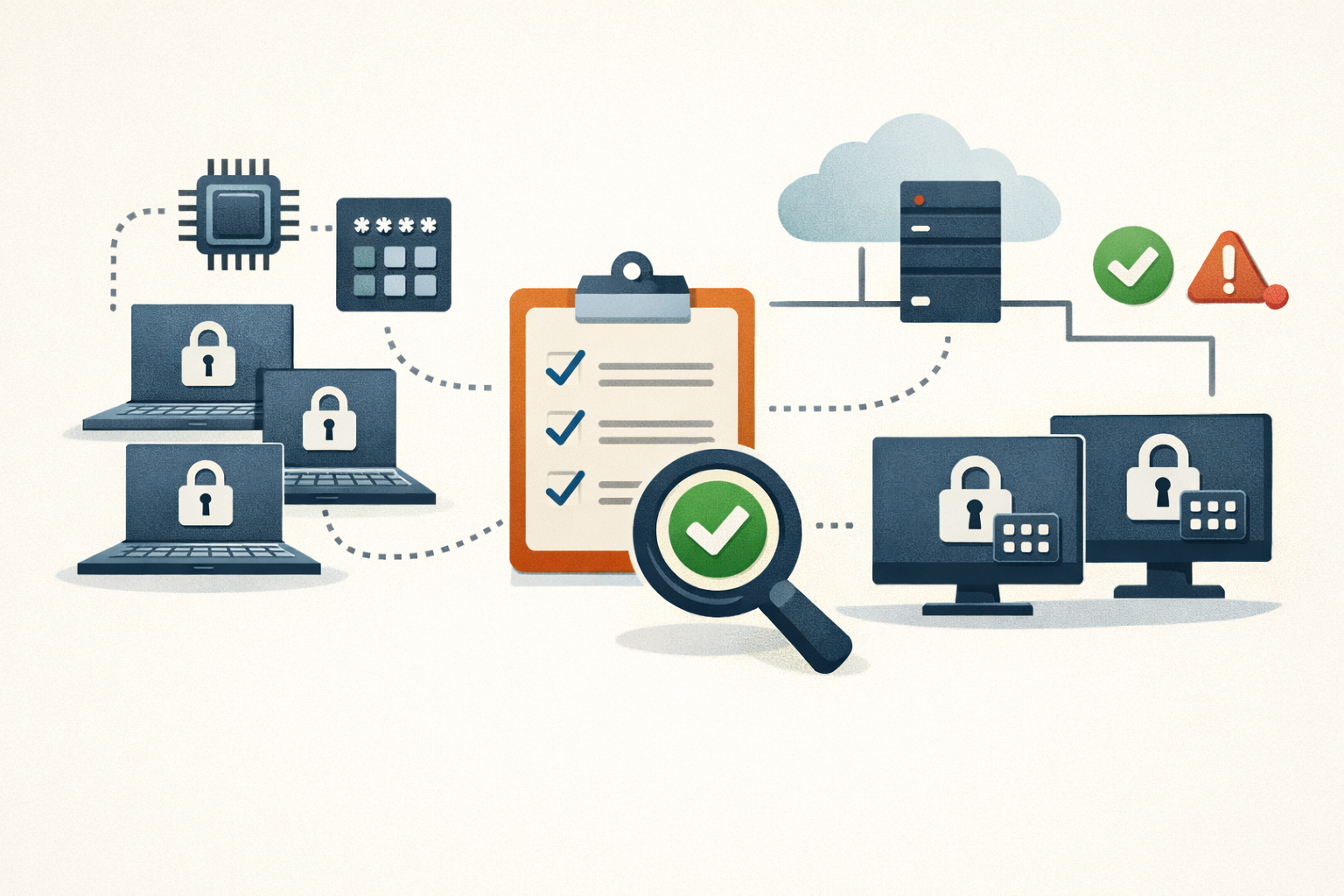
You’ve decided to require TPM+PIN. We already covered why that’s the call for CVE-2026-45585 (the YellowKey WinRE BitLocker bypass, CVSS 6.8); this post is how you enforce it and prove it landed across the fleet. The short version of the threat: on a TPM-only device, the TPM auto-releases the Volume Master Key at boot, so the WinRE attack reaches an already-decrypted volume. A startup PIN holds the key back until someone types it. The NVD entry confirms TPM+PIN devices aren’t exploitable by the public PoC. That’s where this runbook starts.
The trap is that requiring a PIN is one toggle in Intune, and that toggle does almost nothing on the devices you most need to fix. The work is finding the TPM-only machines, pushing the requirement, dealing with the fact that Intune can require a PIN but can’t set one, and then validating at scale so “we pushed the policy” becomes “we can prove it’s enforced.”
What you’re enforcing
Two states matter per device: BitLocker protection is on, and a TPM+PIN key protector exists. A device can pass the first and fail the second. That’s the common gap. It was encrypted with a bare TPM protector months ago, the new policy says “PIN required,” and the device sits there protected but PIN-free, reporting non-compliant with nothing actually changed at boot.
Push the requirement
Go to Endpoint security > Disk encryption > BitLocker in the Intune admin center (Settings Catalog format since June 2023). On the OS drive, set Compatible TPM startup PIN = Required. The underlying BitLocker CSP node is SystemDrivesRequireStartupAuthentication. Supporting settings:
- Minimum PIN length (
SystemDrivesMinimumPINLength, 4-20). - Enhanced PIN (
SystemDrivesEnhancedPIN) if you want alphanumeric. - Preboot input on slates (
SystemDrivesEnablePrebootInputProtectorsOnSlates) for tablets, or they can’t take preboot keyboard input at all.
Now the wall. Per Microsoft, Intune can require a PIN but cannot set one. The CSP enforces startup auth only at the time encryption begins. What that means in practice:
- New or unencrypted device: policy lands, the user is walked through the PIN setup wizard. This case works.
- Already-encrypted TPM-only device (your bulk): the policy updates registry keys, adds no PIN protector, prompts nobody. The device just flips to non-compliant. Nothing is fixed.
- HSTI / Modern Standby devices: the CSP docs say these can’t configure a startup PIN via the CSP at all; users must set it manually. That covers a lot of modern Surface and ultrabook hardware. (Exact behavior on current 24H2/25H2 builds isn’t fully confirmed, so test before you assume.)
- Autopilot / ESP: PIN setup needs a logged-in user, and ESP runs as SYSTEM. It can’t happen there. The community pattern is a Win32 app deployed post-enrollment, sometimes seeding the device serial as a temporary PIN.
For the already-encrypted fleet, you need a script. Add the TPM+PIN protector, then remove the bare TPM protector, or the device still boots PIN-free:
# Add TPM+PIN protector (prompts the user for the PIN value)
Add-BitLockerKeyProtector -MountPoint "C:" -TpmAndPinProtector `
  -Pin (ConvertTo-SecureString $pin -AsPlainText -Force)

# Find and remove the bare TPM-only protector
$tpmOnly = (Get-BitLockerVolume -MountPoint "C:").KeyProtector |
  Where-Object { $_.KeyProtectorType -eq 'Tpm' }
Remove-BitLockerKeyProtector -MountPoint "C:" -KeyProtectorId $tpmOnly.KeyProtectorId
Order matters here. Confirm the Add succeeded before you run the Remove. If the script dies between the two, the device keeps both protectors, and a device that still has a bare Tpm protector boots without a PIN no matter what else is on it. Re-read the protector set after ((Get-BitLockerVolume -MountPoint "C:").KeyProtector) and confirm Tpm is gone and TpmPin is present. That check is what “done” looks like on this step.
You still own the PIN-collection UX. Community remediation scripts put a WPF prompt in front of the user to capture the PIN value before calling Add-BitLockerKeyProtector. Make sure recovery-key escrow to Entra is on before this runs, because a forgotten PIN turns into a recovery-key flow immediately.
How to verify at scale
This is the part most rollouts skip, and it’s the only part that turns “pushed” into “proven.” Use Intune custom compliance: a PowerShell discovery script plus a JSON rules file. The script emits one line of compressed JSON; its hashtable keys become setting names. The JSON rules file evaluates those settings.
Detection logic: protection is on and a TPM+PIN protector exists. Get-BitLockerVolume exposes .KeyProtector[].KeyProtectorType; the value for TPM+PIN is the string "TpmPin". (The WMI equivalent, Win32_EncryptableVolume.GetKeyProtectorType, returns integer 4 = “TPM And PIN,” which is officially documented; the "TpmPin" string is consistent across practitioner sources but not enumerated on a single Microsoft page, so run (Get-BitLockerVolume).KeyProtector.KeyProtectorType on a known-good device first.)
Discovery script:
# Intune: set "Run script in 64-bit PowerShell Host" = Yes (BitLocker module is 64-bit only).
# Runs as SYSTEM by default, which is correct.
$bl = Get-BitLockerVolume -MountPoint $env:SystemDrive
$protectionOn = ($bl.ProtectionStatus -eq "On")
$hasTpmPin = ($bl.KeyProtector | Where-Object { $_.KeyProtectorType -eq "TpmPin" }) -ne $null
$hash = @{ BitLockerProtectionOn = $protectionOn; TpmPinProtectorPresent = $hasTpmPin }
return $hash | ConvertTo-Json -Compress
Expected output on a compliant device:
{"BitLockerProtectionOn":true,"TpmPinProtectorPresent":true}JSON rules file. Setting names are case-sensitive and must match the hashtable keys exactly:
{
  "Rules": [
    {
      "SettingName": "BitLockerProtectionOn",
      "Operator": "IsEquals",
      "DataType": "Boolean",
      "Operand": true,
      "MoreInfoUrl": "https://patchdayalert.com",
      "RemediationStrings": [
        {
          "Language": "en_US",
          "Title": "BitLocker is not protecting the OS drive",
          "Description": "Enable BitLocker on the system drive."
        }
      ]
    },
    {
      "SettingName": "TpmPinProtectorPresent",
      "Operator": "IsEquals",
      "DataType": "Boolean",
      "Operand": true,
      "MoreInfoUrl": "https://patchdayalert.com",
      "RemediationStrings": [
        {
          "Language": "en_US",
          "Title": "No TPM+PIN protector found",
          "Description": "This device boots without a startup PIN. Add a TPM+PIN protector to mitigate CVE-2026-45585."
        }
      ]
    }
  ]
}
Both rules must pass. A device with BitLocker on but only a plain TPM protector fails on TpmPinProtectorPresent. That’s exactly the YellowKey-exposed state, and it’s the device the bare “PIN required” toggle never touched.
This is also how you find your TPM-only devices: deploy the compliance policy fleet-wide and read the non-compliant list. The machines failing TpmPinProtectorPresent are your remediation queue.
Gotchas that will eat your afternoon:
- 64-bit host is mandatory. The BitLocker module won’t load in the default 32-bit host and returns empty or garbage. Set “Run script in 64-bit PowerShell Host” = Yes.
- Keep output tiny. The official limit is 1 MB, but practitioners report a roughly 2048-character practical ceiling (community-reported, not in current Microsoft docs); overflow truncates the JSON and throws error 65009. The two-key output above is nowhere near it, but don’t bloat the script.
- Error codes: 65007 script failed, 65008 a setting is missing from output, 65009 invalid JSON, 65010 datatype mismatch.
- Evaluation runs on roughly an 8-hour cadence with no push-to-evaluate. A device you remediate can take that long to flip to compliant. Budget for it before someone asks why the dashboard is still red.
- One script per policy, one policy per script. Bundle related checks into a single script/rule pair.
When to escalate
Some devices can’t take a PIN cleanly, and forcing one creates a worse problem than YellowKey:
- Unattended-reboot machines. A TPM+PIN device that auto-reboots for patching sits dead at the PIN prompt until someone walks over. Microsoft’s answer is BitLocker Network Unlock (UEFI DHCP + WDS + PKI, wired only), which is real infrastructure most Intune shops have already torn down. For servers and kiosks behind physical controls, TPM-only is often the sane exclusion.
- Slates without an attached keyboard. They need the preboot-input-on-slates setting and a physically connected keyboard at boot.
- HSTI / Modern Standby devices that the CSP can’t configure. These need the manual or Win32-app path, not the policy toggle.
- TPM lockout. Repeated wrong PINs trigger anti-hammering. The recovery key unlocks the volume but does not reset the lockout timer. Tell users to stop after 3-4 tries; lockout behavior varies by manufacturer.
One caveat to carry forward: TPM+PIN defeats the public PoC, not necessarily YellowKey forever. Eclypsium reports the researcher claims a PIN-defeating variant exists but withheld it; that’s unverified, and there’s no Microsoft patch ETA as of late May 2026. Treat the PIN as today’s mitigation, not the close-out.
Requiring a control and proving it are two different jobs. The toggle is a statement of intent; the compliance policy is the evidence. Build the evidence first, and “we require TPM+PIN” stops being a hope and becomes a number you can read off a dashboard. PatchDayAlert covers the bypasses that make controls like this worth proving, not just the patch that eventually closes them.
Sources
- NVD - CVE-2026-45585 — 2026-05-19
- Microsoft - BitLocker CSP — 2025-11-07
- Microsoft - Intune disk encryption settings — 2026-04-15
- Microsoft - Why Intune can’t force PIN post-deployment
- Oliver Kieselbach - PIN via Win32 app
- Katy’s Tech Blog - PIN during Autopilot
- mroenborg - WPF PIN remediation
- Microsoft - Create discovery scripts
- Microsoft - Create JSON rules
- Microsoft - GetKeyProtectorType (Win32_EncryptableVolume)
- Microsoft - BitLocker Network Unlock
- Microsoft - BitLocker recovery overview
- Eclypsium - YellowKey BitLocker bypass analysis — 2026-05
Share
Related field notes
-
Recovering from a bad Intune deployment without making it worse
Stop the spread, unwind the damage, verify it took. A failure-mode-to-action playbook for when a config profile, app push, or CA policy goes sideways.
-
Close the gap between your declared policy and what the box is actually running
A one-off registry edit closes a ticket and never makes it back into the GPO. Here's the three-surface audit that catches the drift, plus the one decision that actually closes the loop.
-
Five checks for Intune driver update policy coverage
Windows Autopatch manages your OS updates. Your kernel-level drivers are on their own unless you built a separate driver update policy. Here is how to tell if yours is missing and how to fix it.
-
Two profiles, one setting: how to catch the MDM overlap that makes enforcement random
When two configuration profiles set the same value on one device, macOS and Intune stop enforcing it deterministically. Here are the detection commands and reports that find the overlap before it burns you.
Get the free CVE triage cheat sheet
Subscribe and we'll email you the one-page triage flow for fresh CVEs. Plus the weekly digest.
Subscribe